Bitlocker for Linux (Dislocker -> Ubuntu Cinnamon Remix)

I regularly consolidate my disk drives to higher capacities as they are available to reduce the complexity managing many controllers, so I’ll often have to wipe the drives before I sell them (trade up). Often they are sold at very little moment’s notice, sanitizing the data might take too long. I learned that if I encrypt my data drives, I don’t really have to do much other than just clearing out the partition before I sell them, and there’s little performance penalty for Bitlocker in modern hardware.

Right now dislocker (Linux version of bitlocker) does not have a GUI to automatically unlock and mount the encrypted drives. Here’s the script that has the form “BL_{drive name}.sh” that will unencrypt the device and mount it and at the same time creating the script in the same folder to unwind (unmount & lock) the drive.

#!/bin/bash

# Extracting partition name from file name (BL_*.sh)
FN_base="$(basename -- $0)"
FN_bare="${FN_base%.*}"
partition=${FN_bare/BL_/}

# TODO: Check with /dev to make sure it's legit
echo $partition
dev_partition="/dev/$partition"

# Unlock the device into a raw image 'file'
path_raw="/media/dislocker/raw_$partition"
sudo mkdir -p $path_raw

file_raw="$path_raw/dislocker-file"
sudo dislocker $dev_partition -u -- $path_raw

# Mount the image file as a disk
path_mount="/media/dislocker/mount_$partition"
sudo mkdir -p $path_mount

sudo mount -o loop $file_raw $path_mount

# Build wind down file
script_unwind="unwind_$partition.sh"
# Leave /media/dislocker there for isolation
echo "#!/bin/bash"             > $script_unwind
echo "sudo umount $path_mount">> $script_unwind
echo "sudo rmdir $path_mount" >> $script_unwind
# Note that the website is wrong. umount the path, not the dislocker-file
echo "sudo umount $path_raw"  >> $script_unwind
echo "sudo rmdir $path_raw"   >> $script_unwind
# Make sure the "$0" is literal including the $ sign or it will
# delete this file instead of the unwind_sd*.sh file
echo "sudo rm -- \"\$0\""     >> $script_unwind
chmod +x $script_unwind


There are reports that newer zuluCrypt can now do bitlocker volumes. Will get back to that later.

I tried to get zuluCrypt on Linux Mint and ran into a few quirks

  • They claim zuluCrypt after 5.7.1 and above supports Bitlocker
  • Linux Mint 20.1 (Ulyssa)’s package repositories are conservative. It only supports up to zuluCrypt 5.7 when 6.0 is out
  • Zulucrypt’s website says you still need dislocker backend for zuluCrypt use Bitlocker
  • Nonetheless after these requirements are done, I cannot unlock a Bitlocker drive. The error message says it’s ‘missing a parameter’. What parameter?
  • I figured that the Bitlocker malfunction might be solved with 6.0 so I tried to download the .deb files from zulucrypt’s website for 6.0. It’s missing a bunch of dependencies that are NOT SATISFIABLE, including a libqt5 dependency that’s nowhere to be found. I found the .deb file yet there’s a chain of dependencies that also cannot be found
  • I tried to get the cryptsetup (LUKS) referred by Zulycrypt’s website but it has its down dependencies problem
  • So to install zulycrypt 6.0, I have no easy option other than moving to Ubuntu.
  • I chose Mint because Ubuntu’s UI defaults are annoying to Windows users from my previous experiences, the glitches and a lot of missing options in their default GUI programs frustrates me.
  • So I wondered if I can install Cinnamon (Mint’s core interface) on Ubuntu so I can get the latest and the greatest packages without waiting for the authority of Linux Mint to implement them.

Turns out there’s already a linux distro that’s uses Cinnamon on Ubuntu by default! It’s called “Ubuntu Cinnamon Remix“! Even better, after I’ve installed it, I realized I don’t have to muck with dislocker/zulucrypt/cryptsetup/LUKS at all! Bitlocker just work right out of the box! When you click on the Bitlocker encrypted volume, it will prompt you for the password and that’s it!

FULL DISK ENCRYPTION IS BUILT IN Ubuntu Cinnamon Remix 20.04!

Loading

General Linux Setup Notes

Install these:

  • Putty (or remember to use ssh -l loginName)
  • Install freerdp-x11 before installing KRDC (Remote desktop client)

Foobar2000 requires snapd to install. It doesn’t have a GUI package manager (either use “sudo snap install” or use Snap Store to find the app and click ‘Install’ directly from there)

There’s a chicken-and-egg problem with snap store though. On Linux Mint, snap-store needs to be installed with command line before the button on the web page works correctly. So there’s no way around doing this command line once: “sudo snap install snap-store”

You’d be better off just doing “sudo snap install foobar2000” if you are not going to use SnapCraft store again later. Alternatively, use DeadBeef.

My other favorite Windows app Notepad++ is also on snap store. Unfortunately, these are both Wine applications that Cinnamon doesn’t scale them properly with HiDPI mode. I’ll use NotepadQQ instead.

It’s a pain in the butt to deal with snap store because it won’t automatically create shorcuts on the panel or desktop. Then you cannot directly run it in the command line either because the apps are install under /snap/bin and it’s not in the path either! Add it in /etc/environment and RE-LOGIN!

There are websites that teaches you to extend the path in /etc/profile.  It’s not necessary if you did /etc/environment already. Doing both will have the path added twice!

Finally, the icons files are hidden in: /var/lib/snapd/desktop/applications and the panel icons can be anebled by linking the .desktop folders:

sudo ln -s /var/lib/snapd/desktop/applications/ /usr/share/applications/snap 

Geeze! A windows program this broken these days are not the norm. They never work right out of the box for the most natural and common use cases!


Only Evolution Mail Client supports Google accounts from GNOME online account services. Install Evolution first before adding accounts or they will be called “Unnamed” and there’s no way to change it until you remove the account and re-add.

Loading

Input Methods (IME) in Linux: Fcitx

IBus is considered as retiring, but it’s still the default in MX Linux. Because the only Cantonese IME in Linux that allows me to swear is Andrew Choi’s CAP, which runs on fcitx, I settled for fcitx as my default IME engine.

Languages

  • Cantonese: Download the debian package for CAP
  • Japanese: Mozc is already installed
  • Simplified Chinese: Pinyin is already installed

Shortcuts (Very much like Windows):

  • Ctrl + Space: turn it on/off
  • Ctrl + Shift: switch between languages
  • Shift: in and out of temporary English mode (inactivate) within the language

I’ve moved the contents of setting Fcitx CAP to this page as the release fcitx5 turned this already tricky process into a maze.

Loading

Two numbers for Google Voice

By default, Google voice ties the number to your Mobile phone, which enables text forwarding, but you cannot have two Google voice numbers forwarding to the same phone.

If only voice forwarding is needed, each Google voice account can link to your Home and Work phone numbers instead. Since they are not considered a Mobile number, you are treating your mobile number as a landline number, which obviously doesn’t have text messaging.

Therefore at most you can have 3 Google Voice numbers going to the same phone, but only one of them (the account where the target number is set as Mobile) can forward text messages.

The tricky part is that this designation can only be changed through the classic setting page here:
https://www.google.com/voice/redirection/voice#phones

The solution came from this forum.

Loading

Cantonese IME for Windows 10

There are not many decent Cantonese IME around. The best option for Windows 7 and before are CPIME. It borderline worked for Windows 8/10 (desktop mode only), but I heard recently Windows 10 broke it in its 1903 update.

Dr. Choi kindly wrote another Cantonese IME called CAP, which I came across while looking for Cantonese IME for Linux. This is the only option that works with Windows 10 natively (apps and desktop).


Getting CAP 2018 to install
[Deprecated, please use CAP 2021 instead, see below]

Unfortunately the installer failed on a fresh Windows 10, saying that “CAP.dll” cannot be registered. I looked at the error code and it usually suggest a missing dependency for the DLL. I used Dependency Walker to look at what’s broken and noticed those are Visual C++ 2015 DEBUG runtime DLLs. Since debug builds aren’t suppose to have a redistributable runtime (it’s actually called NonRedist), the only solution is to install the community edition of Visual C++ 2015 to obtain these DLLs.

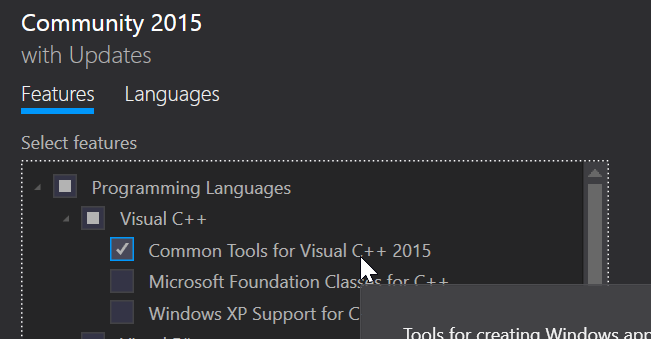
Note that “Common Tools for Visual C++ 2015must be included (installed) so the IME won’t be broken (grayed):

The cause is the missing UCRTBASED.DLL. The files are located at:

C:\Program Files (x86)\Windows Kits\10\bin

It’s under the (x86) variant of Program Files regardless of whether it’s 32-bit or 64-bit.

The missing link to API-MS-WIN-CORE-PATH-L1-1-0.DLL is not important.

After you installed the IME after installing Visual C++ 2015 (any flavor, minimal is OK), you can remove Visual C++ 2015 without breaking the IME, EXCEPT you need to back up the UCRTBASED.DLL first and put it next to the core CAP.DLL file for the IME:

C:\Program Files\Sixth Happiness\CAP\x64

Getting CAP 2021 to install

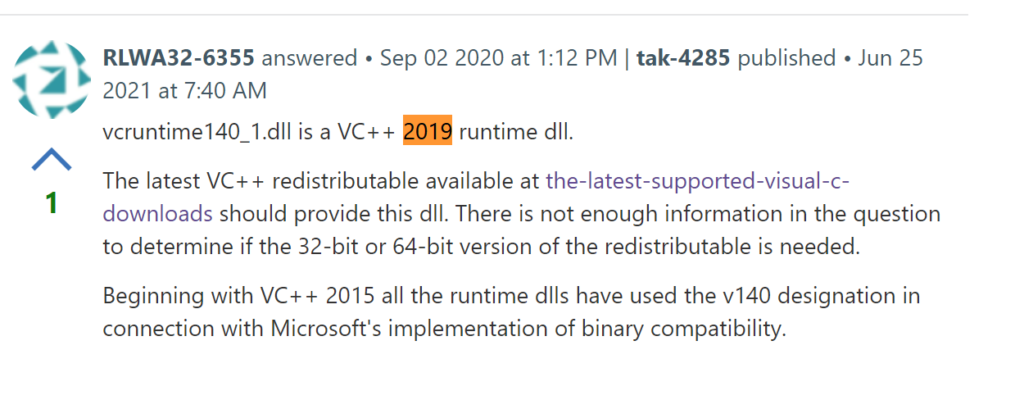
CAP 2021 still won’t install on fresh installation of Windows 10, and I ran it through Dependency Walker and noticed it’s missing VCRUNTIME140_1.dll. Based on this post, this is part of the Microsoft Visual C++ 2019 Redistributable:

Microsoft rolled the runtimes for 2015, 2017, 2019 and 2022 into one package, so if you want missing 2019 runtime DLLs, you might as well install it. This time the package didn’t use any debug version of the runtime like in 2018, which makes life much easier.

Loading