Python packages, modules and imports

Python’s import structure is confusing. Learning by examples (i.e. imitating example code) does not help understanding the logic of it, and there are a lot of possible invalid combinations that are dead ends. One needs to understand the concepts below to use it confidently!

Just like C++ quirks, very often there’s valid reasoning behind this confusing Python design choice and it’s not immediately obvious. Each language cater certain set of use cases at the expense of making other scenarios miserable. That’s why there’s no best universal language for all projects. Know the trade-offs of the languages so you can pick the right tool for the job.

MATLAB’s one file per function/script design

MATLAB made the choice of having one file describe one exposed object/function/class/script so it maps directly into the mental model of file systems. This is good for both user’s sanity and have behavioral advantages for MATLAB’s interpreter:

  1. Users can reason the same same way as they do with files, which is less mental gymnastics
  2. Users can keep track of what’s available to them simply by browsing the directory tree and filenames because file names are function names, which should be sensibly chosen.
  3. MATLAB leverages the file system for indexing available functions and defer loading the contents to the memory until it’s called at runtime, which means changes are reflected automatically.

Package/modules namespace models in MATLAB vs Python

MATLAB traditionally dumps all free functions (.m files) available in its search paths into the root workspace. Users are responsible for not picking colliding names. Classes, namespaces and packages are after-thoughts in MATLAB while the OOP dogma is the central theme of Python, so obviously such practices are frowned upon.

RANT: OOP is basically a worldview formed by adding artificial man-made constructs (meanings such as agents, hierarchy, relationships) to the idea of bundling code (programs) and data (variables) in isolated packages controlled (scoped) by namespaces (which is just the lexer in your compiler enforcing man-made rules). The idea of code and data being the same thing came from Von Neumann Architecture: your hard drive or RAM doesn’t care what the bits stands for; it’s up to your processor and OS to exercise self-restraint. People are often tempted to follow rules too rigidly or not take them seriously when what really matters is understanding where the rules came from, why they are useful in certain contexts and under what situations they do not apply.

Packages namespaces are pretty much the skeleton of classes so the structure and syntax is the same for both. From my memory, it was at around 2015 that MATLAB started actively encouraging users (and their own internal development) to move away from the flat root workspace model and use packages to tuck away function names that are not immediately relevant to their interests and summon them through import syntax as needed. This practice is mandatory (enforced) in Python!

However are a few subtle differences between the two in terms of the package/module systems:

  • MATLAB does not have from statement because import do not have the option to expose the (nested tree of) package name to the workspace. It always dumps the leaf-node to the current workspace, the same way as from ... import syntax is used in Python.
  • MATLAB does not have an optional as statement for you to give an alternative name to the package you just imported. In my opinion, Python has to provide the as statement as an option to shorten package/module names because it was too aggressively tucking away commonly used packages (such as numpy) that forcing people to spell the informative names in full is going to be an outcry.
  • Unlike free functions (.m files), MATLAB classes are cached once the object is instantiated until clear classes or the like that gets rid of all instances in the workspace. Python’s module has the same behavior, which you need to unload with del (which is like MATLAB’s clear).
  • Python’s modules are not classes, though most of the time they behave like MATLAB’s static classes. Because modules lacks instantiated instances, you can reload Python modules with importlib.reload(). On the other hand, since MATLAB packages merely manages when the .m files can get into the current scope (with import command), the file system still indexes the available function list. Changes in .m file functions reflects immediately on the next call in MATLAB as MATLAB detects file changes, yet Python has to reload the module to update the function names index because the only way to look at what functions are changed is revisiting the contents of an updated .py file!
  • MATLAB abstracts folder names (that starts with + symbol) as packages and functions as .m files while Python abstracts the .py file as a module (like MATLAB’s package) and the objects are the contents inside it. Therefore Python packages is analogous to the outer level of a double-packed (nested) MATLAB package. I’ll explain this in detail in the next sections.

Files AND directories are treated the same way in module hierarchy!

This comes with a few implications

  • if you name your project /myproj/myproj.py with a function def myproj(), which is a very usual thing most MATLAB users would do, your module is called myproj.myproj and if you just import myproj, you will call your function as myproj.myproj.myproj()!
  • you can confuse Python module loader if you have a subfolder named the same as a .py file at the same level. The subfolder will prevail and the .py file with the same name is shadowed!

The reason is that Python allows users to mix scripts, functions, classes in the same file and they classes or functions do not need to match the filenames in order for Python to find it, therefore the filename itself serves as the label for the collection (module) of functions, classes and other (script) objects inside! The directory is a collection of these files which itself is a collection, so it’s a two level nest because a directory containing a .py file is a collection of collection!

On the other hand, in MATLAB, it’s one .m file per (publicly exposed) function, classes or scripts, so the system registers and calls them by the filename, not really by how you named it inside. If you have a typo in your function name that doesn’t match your filename, your filename will prevail if there’s only one function there. Helper functions not matching the filename will not be exposed and it will have a static/file-local scope.

Packages in MATLAB are done in folders that starts with a + symbol. Packages by default are not exposed to global namespaces in your MATLAB’s paths. They work like Python’s module so you also get them into your current workspace with import. This means it’s not possible to define a module within a file like Python. Each filename exclusively represent one accessible function or classes in the package (no script variables though).

A module (in Python) is basically treating a file as a package folder, which contradicts with MATLAB’s function loading system’s design. So there’s only the concept of packages in MATLAB and no concept of modules in MATLAB. Multiple functions in a Python module should be written into one file per function in MATLAB and loaded as a package.

Python separated the two concepts (modules and packages) because .py file allows a mixture of scripts, classes and loose functions formed a logical unit with the same structure as packages itself, so they need another name called module to separate folder-based collection (logical unit) and file-based collections (logical unit).

This is very counterintuitive at the surface (because it defeats the point of directories) if you don’t know Python allowing user to mix scripts, functions and classes in a file meant the file itself is a module/collection of executable contents.

from (package/module) import (package/module or objectS) <as (namespace)>

This syntax is super confusing, especially before we understand that

  1. packages has to be folders (folder form of modules)
  2. modules can be .py files as well as packages
  3. packages/modules are technically objects

The hierarchy for the from import as syntax looks like this:

package_folder > file.py > (obj1, obj2, ... )

This has the following implications:

  • from strips the specified namespace so import dumps the node contents to root workspace
  • import without from exposes the entire hierarchy to the root workspace.
  • functions, classes and variables in the scripts are ALL OBJECTS.
  • if you do import mymodule, a function f in mymodule.py can only be accessed through mymodule.f(), if you want to just call f() at the workspace, do from mymodule import f

These properties also shapes the rules for where wildcards are used in the statement:

  • from cannot have wildcards because they are either a folder (package) or a file (module)
  • import is the only place that can have wildcards * because it is only possible to load multiple objects from one .py file.
  • import * cannot be used without from statement because you need to at some point load a .py file
  • it’s a dead end to do from package import * beacuse it’s trying to load multiple raw .py files to the root workspace instead of importing multiple objects defined in the .py file.
  • it also does not make sense (nor possible) to follow import * with as statement because there is no mechanism to map multiple objects into one object name

So the bottom line is that your from import as statement has to somehow load a .py file in order to be valid. You can only choose between these two usage:

  • load the .py file with from statement and pick the objects at import, or
  • skip the from statement and import the .py file, not getting to choose the objects inside it.

as statement can only work if you have only one item specified in import, whether it’s the .py file or the objects inside it. Also, if you understand the rationales above, you’ll see that these two are equivalent:

from package_A import module_file_B as namespace_C
import package_A.module_file_B as namespace_C

because with as statement, whatever node you have selected is accessed through the output namespace you have specified, so whether you choose to strip the path name structure in the extracted output (i.e. use from statement) is irrelevant since you are not using the package and module names in the root namespace anymore.

The behavior of from import as is very similar to the choices you have to make extracting a zip file with nested folder structures, except that you have to make a mental substitution that a .py file is analogous to a subfolder while the objects described in the .py file is analogous to files in the said subfolder. Aargh!

Loading

Windows 10 Python WTF

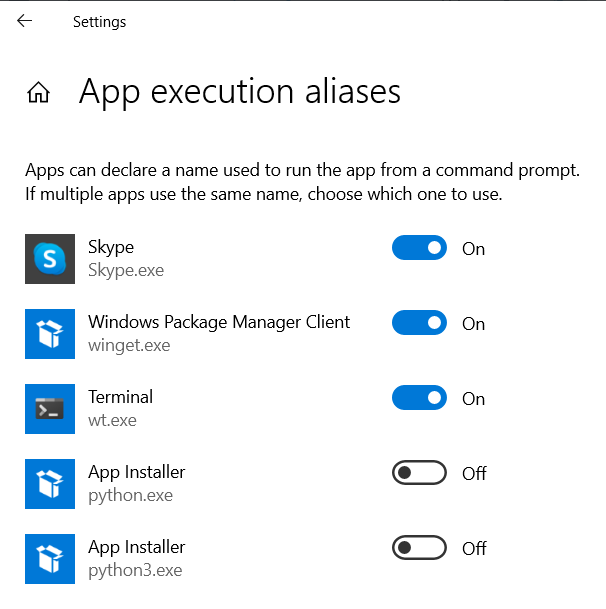
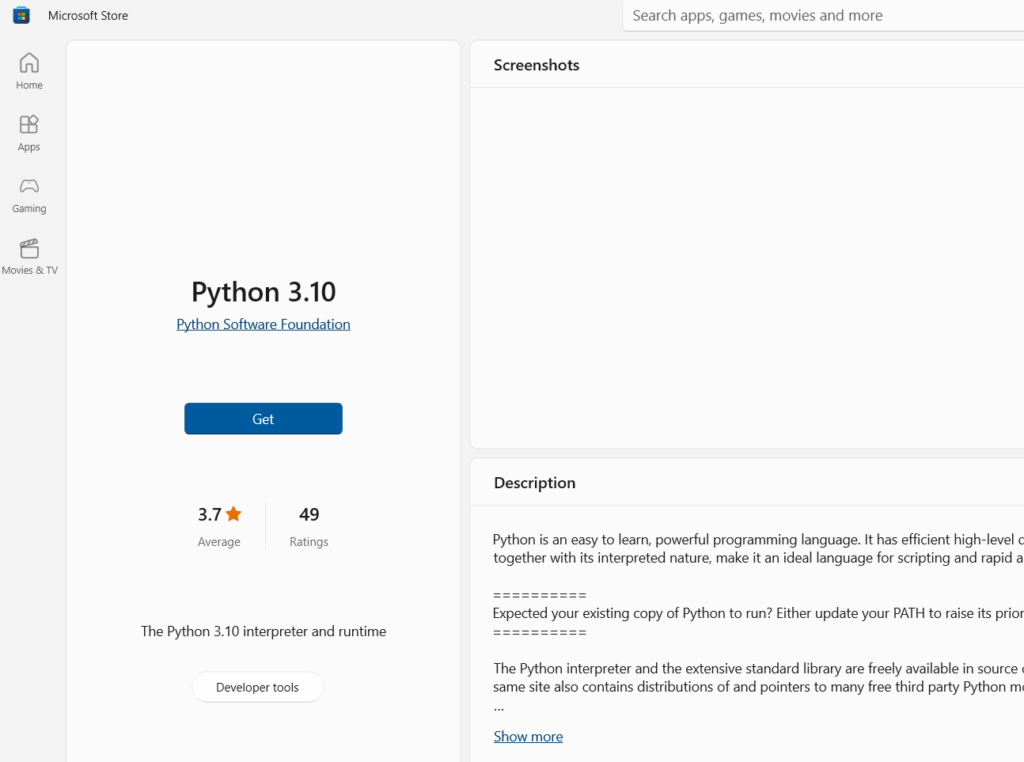
Windows 10 comes with a default alias that if you type python anywhere in terminal, powershell, run, etc, It will run a stub that points you to getting it in Windows Store. WTF man! I hate these stubs that are nothing but advertising! People will know there’s Python available in the store if Python Software Foundation’s website announces it. There’s no need to hijack the namespace with a useless stub!

After I installed Spyder 5.3.0, it started with a Windows console instead of a Python Interpreter console, so when I typed Python (Spyder 5.3.0 came with Python 3.8.10 in its subfolder), this damn App store stub came up:

When I tried to force a .exe exceution in Powershell, I saw this:

So there’s a way to disable this!

It’s not the first time Spyder not working as intended out of the box, but Microsoft’s overzealous promotion of their ‘good ideas’ causes grief and agony to people who simply want things done.

Loading

Powershell notes (for MATLAB/python users)

Data Type characteristics

PowershellMATLABPython
Nearly everything is a/anObjectMatrix (APL-philosophy)Object (which are dictionaries)
Assignment behavior*Reassigned referenceCopy-on-writeReassigned reference
Heterogenous data containersArray/CollectionsCellsLists

* Shallow assignment (transferring reference only) means the LHS does not have its own copy, so modifying the new reference will modify the underlying data on the RHS.

Syntax / Usage

PowershellMATLABPython
Method chainingYesMight misbehaveYes
List ComprehensionNo. Map first then filterYes
Named input argumentsNative
f -a 1 -b 22
Name-Value pairs parsed insideNative
f(a=13, b=22)
Implicit NON-NULL return valueOptional
Binary map operationNative matrix ops
*fun() does n-ary
Use numpy
list( map(operator.add, L1, L2) )
Check Type$g -is [type]is*() or isa()isinstance(val, type)
Unpacking (flattening)
arbitrary containers
Default
Use unary , to avoid
No
Use [{:}] to perform
No
Use *, list comp, or
list(itertools.chain(*ls))
Conditional/statement block inside container creationYes?
View Object Info with Data| Format-List -Property *
or
Format-List -InputObject
properties()
methods()
get()
List members (method and properties)’s prototypes| Get-Member

Powershell specific

  • The UNCAPTURED output value in the last line of the block is the return value! Unary side effect statements such as $x++ do not have output value. Watch out for statements that looks like it’s going nowhere at the end of the code as these are not nop/bugs, but return value. This has the same stench as fall-throughs.
  • foreach() follows the last uncaptured output value return rule above doing a 1-to-1 map from the input collection to output collection (you can assign output to foreach() as it’s also seen as a function)
  • Powershell suck at binary operations between two arrays. Just an elementwise A+B you’d be thinking in terms of loops and worry about dimensions.
  • You can put if and loop blocks inside collections list construction, like this:
@( 3, if(cond1){...; $v1}  do{...; $v2}while(cond2) )

MATLAB specific

  • When used with classes and custom matrices/arrays, chaining fields/properties/methods by indices often do not work, when they do, they often give out only the first element instead of the entire array (IIRC, there are operator methods that needs to be coordinated in the classes involved to make sure they chain correctly). In short, just don’t chain unless in very simple, scalar cases. Always output it to a variable a access the leaf.

Range & Indexing

PowershellMATLABPython
Logical IndexingYesNo. Use list comprehension/Numpy
Negative (cyclic) IndexingYesYes
end‘ of array keywordYesNo. Skip stop in slice instead
Step (skip every n items)YesYes. Both range or slice
Detect descending rangeYes
Automatic extend arrayYes
Reading array out of boundsDo nothingErrorError

Negative (cyclic) indexing along with automatic descending range, along with the lack of ‘end’ keyword is a huge pain in the rear when you want to scan from left to right like A[5:end].

Instead, you’ll have to do $A[4..($A.length-1)] because the range 4..-1 inside A[4..-1] is unrolled as 4,3,2,1,0,-1 (thus scanning from right to left and wraps around) without first consulting with the array A like the end keyword in MATLAB does so it can substitute the ends of the range with the array information before it unrolls.

I am willing to bet that this behavior does not have a sound basis other than people thinking negative indices and descending ranges alone are two good ideas without realizing that nearly nobody freaking wants to scan from right to left and wrap around!

I had the same gripes about negative indices in Python not carefully coordinating with other combinations in common use cases which cases unintuitive behavior.

Range indexing syntax

# Powershell
1..10 # No step/skip for range creation
A[1..10]  # No special treatment in array such as figuring out the 'end'

% MATLAB
A[start:(step):stop]

# Python
A[range(start,stop,step)]
# Slicing (it's not range)
A[(start):(stop):(step)] # Can skip everything 
# In Python, A=X merely reassign the label A as the alias for X.
# Modifying the reassigned A through A=X will modify underlying contents of X
# To deep-copy contents without .Clone(), assign the full slice
A[:] = X

Hasthtable / Dictionaries

% MATLAB: Use dynamic fields in struct or containers.Map()
# Python: dictionaries such as {a:1, b='x'}
# Powershell: @{a=1, b='x'}

Structs

Powershell does not have direct struct or dynamic field name struct. Instead if your object is uniform (you expect the fields not to change much), use [PSCustomObject]@{}. You can also just use simple hashtable @{}, but for some reason it doesn’t work the way I expected when put into arrays when I try to reference it by array index.

Array rules surprises

  • Array comparisons are filtering operation (not boolean array output like MATLAB). (0..9) -ge 5 gives 5 to 9, not a list of False … False, True … True. To get a boolean array, use this shortcut:
(0..9) | % {$_ -ge 5}

Map-filter combo syntax is | ? instead of Map syntax | %

  • Powershell array (which are heterogenous data containers) are unpacked and stacked by default (in MATLAB, I had to write a lot of routines to unpack and stack cells of cells). To keep cells packed (in MATLAB lingo, it’s like ‘UniformOutput’, false in cellfun), add a comma unary operator in front of the operation that are expected to be unpacked like this:
.$_.Split('_')

Set Operations

This is one of the WTF moments of Powershell as a programming language. Convenient set operations is essential for most of the routine boring stuff that involves relational data. A lot of Powershell’s intended audience works in database like environment (like IT managers dealing with Active Directory), they have Group-Object for typical data analysis tasks, yet they make life miserable just to do basic set operations like intersection and differencing!

Powershell has a Compare-Object, but this is as unnatural and annoying to use as users are effectively rebuilding all 4 basic set-ops (intersection, union, set-diff, xor) based on any two! Not to mention you have to sift through table to get to the piece you wanted!

Basically Compare-Object out of the box

  • is a set-diff showing both directions (A\B and also B\A) at the same time. If you throw away the direction info, it’s xor.
  • if you want intersection, you’ll need to add -IncludeEqual -ExcludeDifferent
  • (WTF!) If you just specify -ExcludeDifferent, by definition there’s no output because by default Compare-Object shows you ONLY the two set-diffs and you are telling it to not show any diffs!
  • Union is specifying -IncludeEqual only. But it’d rather stack both then do a | Sort-Object - Unique

Some people might suggest doing | ? {$_ -eq $B} for intersection (or is-member). This is generally a bad idea if you have a lot of data because it’s in the O(n*n) runtime algorithm (loop-within-loop) while any properly done intersection algorithm will just sort then scan the adjacent item to check for duplicates, which gives O(n log(n)) time (typical sorting algorithm takes up most of the time).

If you noticed, it’s set operations within the outputs of Compare-Objects with the Venn diagram of -IncludeEqual -ExcludeDifferent switches! It’s doable, but totally unnecessary mindfuck that should not be repeated frequently.

In MATLAB land, I made my own overloading operators that do set operation over cellstr(), categorical and tabular objects (I went into their code and added the features and talked to TMW so they added the features later), sometimes getting into their sort and indexing logic as necessary. This shows how badly do I need set operations to come naturally.

One might not deal with it too much in low level languages like C++ (STL set doesn’t get used as much compared to other containers), but for a language made to get a lot of common things done (i.e. the language designer kind of reads the users mind), I’m surprised that the Powershell team overlooked the set operations!

Sets are very powerful abstractions that should not be made less descriptive (hard to read) by dancing around it with equivalent operations with some programming gymnastics! If these basic stuff are not built in, we are going to see a lot of people taking ugly shortcuts to avoid coding up these bread and butter functions and put it in libraries (or downloading 3rd-party libraries)!

Powershell surprises

  • Typical symbolic comparison operators do not work because ‘>’ can be misinterpreted as redirection in command prompts. Use switches like -gt (greater than) instead.
  • Redirection’s default text output uses UTF16-LE encoding (2 bytes per character). Programs assuming ASCII (1 byte per character) might not behave as intended (e.g. if you use copy command merge an ASCII/UTF8 file with UTF16-LE, you might end up with spaces in the sections that are formatted with UTF16-LE)
  • Cannot extract string matches from regex without executing a -match which returns boolean unless we use the the $matches$ spilled into variable space. Consider [regex]::Match($Text, $Pattern).Groups[1].Value
  • Methods are called with parenthesis yet functions are not called with parenthesis, just like cmd-lets! Trying to call a function with multiple input arguments with parenthesis like f(3,5) will be interpreted as calling f with ONE ARGUMENT containing an ARRAY of 3 and 5!
  • Write-Host takes everything after it literally (white spaces included, almost like echo command), with the exception of plugging in $variables! If you want anything interpreted, such as concatenation, you need to put the bracket around the whole statement!

Libraries and Modules

  • Reload module using Import-Module $moduleName -Force

Loading

Regex Notes

Concepts

Mechanics

  • . any character
  • \ escapes special characters
  • characters (\d digits,\w word (i.e. letter/digit/underscore), \s whitespace).
  • [] character classes (define rules over what characters are accepted, unlike the . wildcard)
    [3-7] hypen inside [] bracket can specify ranges to mean things such as `[3,4,5,6,7]`
    [^ ...] is the mirror of it to exclude the mentioned characters
  • | choices (think of it as OR)
  • Complement (i.e. everything but) version are capitalized, such as \D is everything not a \d
  • whitespaces (\n newline, \t tab,

Modifiers

  • repetition quantifiers (? 0~1 times, + at least once, * any times, {match how many times})
  • (? ...) inline modifiers alters behaviors such as how newlines, case sensitivity, whether (...) captures or just groups, and comments within patterns are handled

Positioning rules

  • anchors (^ begins with, $ ends with)
  • \b word boundary

Output behavior

  • (...) capturing group, (?: ...) non-capturing group
  • \(index) content of previous matched groups/chunks referred to by indices.
    This feature generates derived new content instead of just extracting
  • (?( = | <= | ! | <! ) ...assertions...) lookarounds skips the contents mentioned in ...assertion... before/after the pattern so you can toss out the matched assertion from your capture results.

(?s) Also match newline characters (‘single-line’ or DOTALL mode)

Starting with (?s) flag (also called inline modifiers) expands the . (dot) single character pattern to ALSO match multiple lines (not by default).

Useful for extracting the contents of HTML blocks blindly and post-process it elsewhere

(?m) Pattern starts over as a new string for each line (‘multi-line’ mode)

Starting with (?m) flag tells anchors ^ (begin with) and $ (end with) to

Assertions: use lookarounds to skip (not capture) patterns
(?( = | <= | ! | <! ) assertion pattern)

  • < is lookbehind, no prefix-character is lookahead.
    -ahead/-behind refers to WHERE the you want TO CAPTURE relative to the assertion pattern,
    NOT what you want to assert (match and throw) away (inside the (? ...) )
  • = (positive) asserts the pattern inside the lookaround bracket,
    ! (negative) asserts the pattern inside the lookaround bracket MUST BE FALSE.

Assertions are very useful for getting to the meat you really want to capture rather than sifting through patterns introduced solely for making assertions that you intended to throw away

Extract HTML block

(?ms)(?<= starting tag pattern) body pattern (?= terminating tag pattern)

Loading

Cinnamon Desktop UI design WTFs (1)

Out of the box, Cinnamon decides to group the taskbar buttons like later Windows did. It’s often a huge annoyance to people who hates context switching in our head (I like huge workspaces that I can see everything at once so I don’t overlook clues from the relationship between things I’m working on. This is how I find difficult twists in research problems that other people give up solving).

In Windows, you right click on the taskbar, get to settings and there’s a pulldown menu for you to decide whether and how the buttons are grouped. Easy. But Cinnamon still have the Linux smell: organize things that are logical to programmers but not users (Tektronix, DD-WRT, etc. does that too), then surprise users with poorly thought out default behavior.

This time it’s a can of worms that requires some web searching to find people with the same exact specific problem (it’s a sign of poor UI design if the users cannot guess from the UI how to do what they want).

  1. Needing to change whether buttons are grouped is common. It should not take a lot of steps to change the behavior, preferably a right click context menu
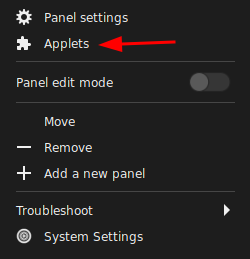
  1. I would have thought it’s under Panel Settings, but hell no, things has to be organized the way the code was designed (sarcasm). It turns out that the windows button grouping is handled by an Applet called “Grouped Window List”
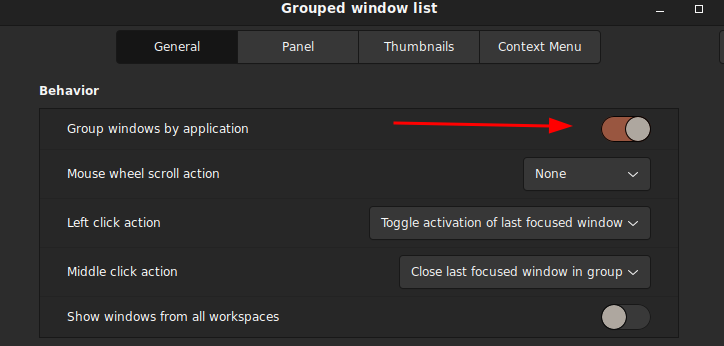
  1. Some user suggested removing the applet altogether (turns out it’s wrong and unnecessary as turning it off will disable the taskbar altogether and there’s an option to disable it within the applet’s setting: the applet itself is the windows list, not just the grouping feature), but by default the applet was not activated the settings button is dead. I have to go to the bottom navigation bar in the window and hit the ‘+’ sign to get to the settings so now there’s a check mark next to it and the setting (gear) button is now activated.

    They also did not dim the settings button (two gears) when the ‘grouped window list’ is not activated (bug?), which made me think I can configure an Applet that’s not in use. Not to mention the previous settings got cleared (reset) if I disable the Applet and re-enable immediately afterwards (bug?)!
  1. Now I can finally get to turn this shit off
Chris Rock’s #HNTGYAKBTP Step #4 (1. OTL, 2. UCS, 3. SI, 4. TTSO, 5. BP, 6. STFU, 7. GAWF, 8. DRWAMW)
  1. This is where I think the UI design’s really messed up. After you activate/deactivate the “Grouped windows list” applet, the buttons aligned right instead of left (default)! WTF!?! Do not do shit to surprise users! There’s absolutely no freaking logical reason why the taskbar button alignment should change the default (or the current state) for any reason!
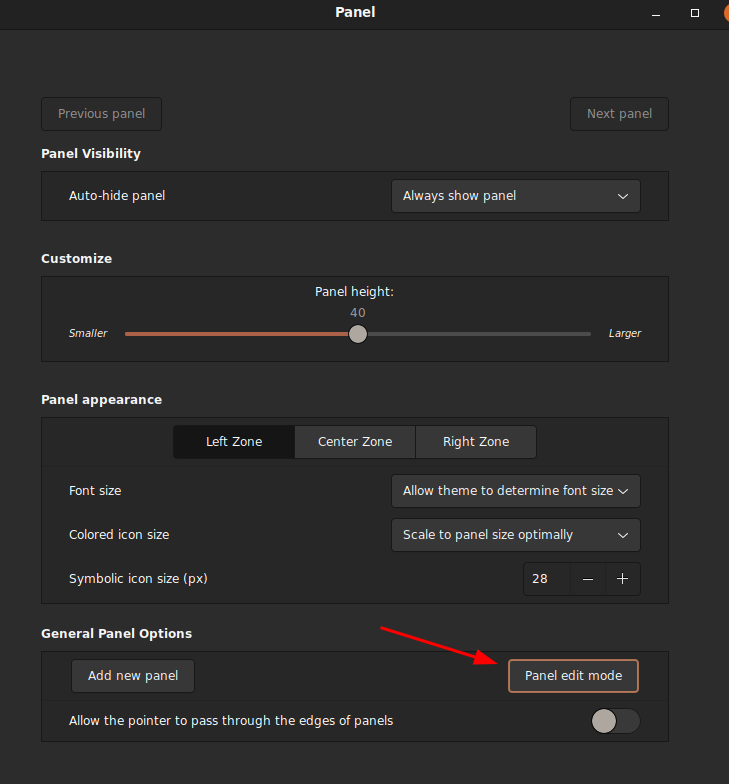
  2. To fix this, you have to so something similar to unlocking the taskbar in Microsoft Windows to move the task button bar. It’s easy in MS Windows as you just right click context menu on the taskbar to unlock and just drag the starting separator (the || bar on the leftmost where the taskbar starts) to specific position you wanted. In Linux/Cinnamon, you have to enter the ‘Panel Edit Mode’ to unlock the taskbar so you can drag things around:
  1. I was confused while dragging the task button bar because there’s no clear position markers of where the task button starts and where it can ‘snap to grid’. It’s easy to drop it to the center to align center, but to align left, you have to watch for the buttons you want to insert before to move around to tell if it was a valid place to drop your new taskbar position What a pain in the butt!

This UI design suck, and I can totally understand why they would do something like this because of my programming background. It’s very logical for the programmer to modularize it as one applet, but first of all, generic suffixes like -let and -get does not help users get what the name means: it’s geeks’ way to name abstract concepts without getting the essence of the use case.

In MS Windows, the ‘Applets’ are organized roughly the same as ‘Toolbar’, except Windows is slightly more specialized that they have a ‘Toolbar’, ‘Start Menu’ and ‘Systray’ as distinct concepts instead of abstracting them into a higher level object as in ‘Applets’.

The biggest gripe I have about Cinnamon’s design choices is that detailed position adjustment needs to be easily accessible it’s likely that user preferences may vary a lot.

  • By not having a separate Toolbar concept, they forgot to add direct ‘unlock grouped windows list (aka tasklist toolbar in MS Windows)’ option (context menu item). You have to click through ‘Preference > Configure’ to get to get to configure the ‘Grouped window list’
  • Since the ‘Grouped window list’ is a (container) ‘bar’ within a bigger’ bar’ (Panel), the position of the window taskbar is logically organized under the platform (the bigger bar, hence the Panel), therefore the unlock window taskbar setting belongs to Panel, not Applet. This makes sense to programmers who knows that the feature is conceptually organized as container objects, but this is hell of confusing for users if they have to reason through this when they are trying to do one of the most common things!
  • Unlike MS Windows, you cannot use the task buttons while you are in Panel edit mode. Panel edit mode (you enter a special mode where you drag objects into positions you like, but cannot actually use them, then freeze it after you leave the mode) is the same concept used in Interactive Broker’s Trader Workstation (TWS), which is a pain in the ass but I understand the massive work saved for the people who designs the code/UI. Of course it comes at the expense of user frustration.
  • The solution article was written in 2018 and I’m surprised I still need that in 2022!

Loading