There are many forks of WSA. For this blog post, I’ll assume this popular variant that’s the most updated
https://github.com/MustardChef/WSABuilds
The common use case starts the program with Run.bat which is just a wrapper for the powershell script Install.ps1.
Unlike conventional designs, there isn’t really a dedicated installer nor the program runs standalone. The launcher starts the WSA if it’s already ‘installed’ and ‘install’ it if it wasn’t. If a WSA was launched, it’d be closed and restarted (yes, it will interrupt the apps opened). So you basically trust the Install.ps1 script to do the right thing managing everything needed to get WSA up and running.
The Hyper-V virtual machine is really in %LOCALAPPDATA%\Packages\MicrosoftCorporationII.WindowsSubsystemForAndroid_8wekyb3d8bbwe\LocalCache\ and everything is in userdata.*.vhdx so there’s only one file to backup and restore.
Direct Android App icons on Windows Start Menu
The Windows start menu icons created by installing apps on WSA are launching the stub (App execution alias) to wsaclient.exe located in %localappdata%\Microsoft\WindowsApps\MicrosoftCorporationII.WindowsSubsystemForAndroid_8wekyb3d8bbwe\
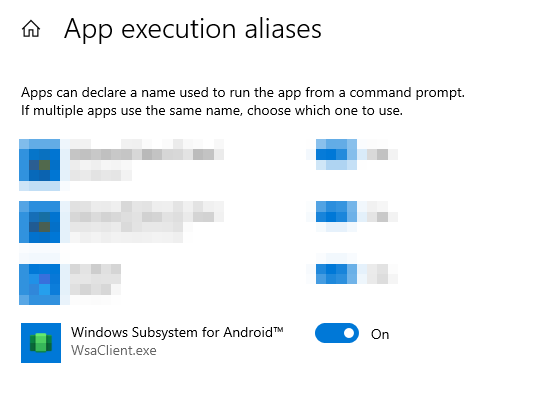
Specifically the syntax is wsaclient /launch wsa://{android application ID}.
Annoying windows/apps opened every time WSA (Run.bat) is started
It’d make sense to say if WSA displays nothing after successfully starting in the background, beginners won’t know where to start. It typically starts these
- native Windows WSA settings app (Microsoft App, not Android App)
- Google Play store (Android app)
- Android Settings app (Android app)
If you installed the WSA with KernelSU, a webpage with the docs about KernelSU pops up every single time you start the WSA, which is ridiculous.
Turns out it’s these lines (the Finish block) in Install.ps1‘s design decisions. I simply commented these nusiances out now that I know where and how to launch them when needed

Creating icons to Android apps
Google Play app is usually created by WSA, but not the Android-Settings Android app and WSA-Settings Windows App. Disabling these above means I’ll have to make the icons to them since they are the starting points to managing the emulated Android system.
If you forget Windows Apps are different from Windows programs like I do, you should right click on the WSA-Settings Windows App and make a shortcut icon out of it to be used on the Windows Desktop or Start Menu.
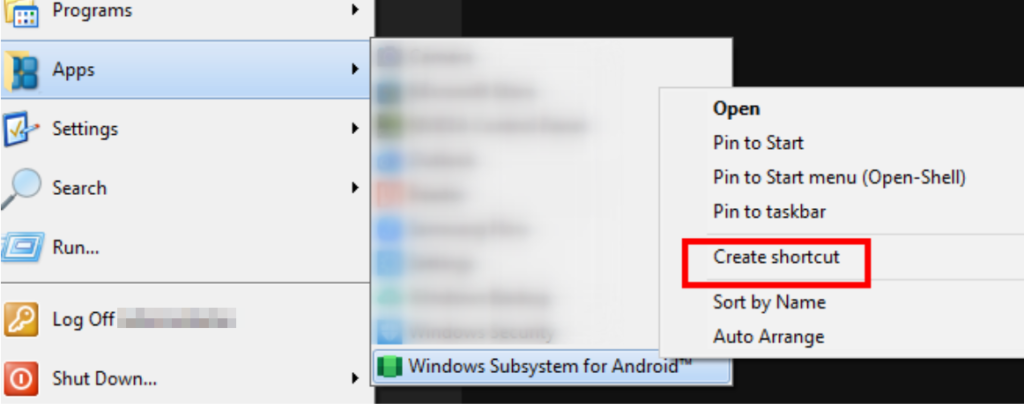
Android-Settings Android app icon can be created from this command:
%LocalAppData%\Microsoft\WindowsApps\MicrosoftCorporationII.WindowsSubsystemForAndroid_8wekyb3d8bbwe\WsaClient.exe /launch wsa://com.android.settingsWSA Sideloader
Since WSA doesn’t come with many apps. If you don’t want to login to your Google account to use Play store, you can download the APKs (say Apkpure) and sideload it with WSA Sideloader. It’s avaiable
As Windows App: https://apps.microsoft.com/detail/9nmfsjb25qjr?hl=en-US&gl=US
As Windows Installer: https://github.com/infinitepower18/WSA-Sideloader/releases
You will have to turn on Developer Mode in the WSA-Settings Windows App first
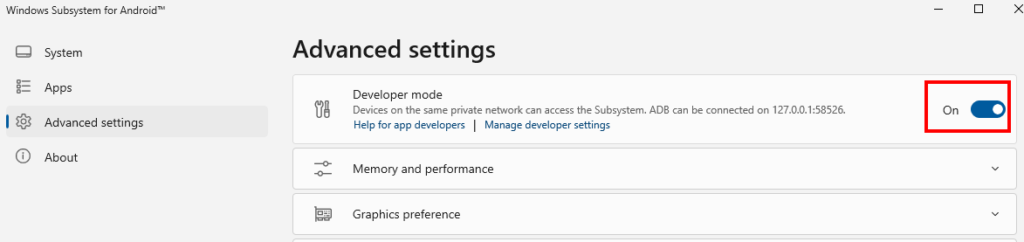
and allow ADB debugging (since this is how sideloading works) when prompted.

 meets the description of the operations below”