I received two PS350 power supply units that one of it has sparks when output is enabled and the other just won’t output anything at all.
The only repair info I found is from one of my favorite youtube channel the Signal Path. However, his unit has a much easier problem: the solder joints cracked because PS350 uses the metal case as a shield that are subjected to mechanical stress.
However, after difficult troubleshooting, I realized one unit has a fried resistor in the HV section, and a few core MOSFETs shorted.
The other unit is much more difficult: not only the HV capacitor is blown, resistor is blown, diodes shorted (won’t be able to detect it by probing in-circuit because of the capacitor ladder), PCB trace to the feedback path vaporized (without that the voltage will rise uncontrollably until something’s fried), and a bunch of MOSFETs, transistors and regulators ICs needs to be replaced.
Likely both units are broken because the users switched polarity without turning the HV section off (and let the voltage bleed out). This is very important and the markings on the case already warned the user NOT to do so.
You absolutely must NOT change the polarity while the output is live because the components in the HV section are marked for 4~6kV, so there is little room for a voltage spike past the operating voltages. The act of switching out the polarity (by mechanically swapping the pins through the dial switch at the back) doubles the voltage stored in the capacitors in a voltage multiplier ladder, so you are almost sure to crack the HV capacitors and likely the HV diodes.
Since I’ve developed experience for repairing SRS PS350 by reverse engineering some of the circuit sections, I welcome request for repair evaluation (no fix, no fee). Please call me at 949-682-8145, or meet me at www.humgar.com.
I’d like to write a function to selectively modify lines read from a file handle and write it back. By default, lines are read as byte() objects that are immutable, so I converted it to bytearray() instead so it can be modified because only a few lines meeting certain criteria needs to be changed.
When I try to refactor similar operation into a function, I was hoping to pass the mutable bytearray() as an argument and directly modify the caller’s content like in C++, given Python variables works LIKE reference binding.
I know bytearray.replace() does not modify the data in place, but instead outputs the modified line to a new variable. Normally, I can simply do this:
line = line.replace(b'\tCLASS', b'')
and the code will work. However, it doesn’t do anything when I try to pass it as an argument to a Python function (unless I return line as output). Although I am well aware that Python variables assignments to existing variables means orphaning the old data and re-purposing the label, the variable assignment behavior in Python requires careful thought when used in non-idiomatic situation.
In other words, I want this function to have side effects on the variable ‘line‘, but I wasn’t doing it right. This is a tempting mistake for people with a C/C++ background: in C/C++, it is not possible to shadow an input parameter even if we were to explicitly declare it, so the innocent assignment I did above has to modify the object in the caller (passed as a reference to the function) in C/C++, as if I did this directly in the caller.
However, in Python, variables do not need to be declared (aka, dynamically typed). This opens up the possibility of unwittingly shadowing the input parameters, which is what happened here. Mutable arguments on the stack still can be modified through the function, but when you assign a variable using ‘=’ operator, a new local variable with the name on the LHS is created, which shadows the input parameter.
This means the connection to the caller objects is lost during shadowing.
The correct way to do this is use slice assignment (which the logic/concept is very different despite the syntax is similar) to replace all the contents of the input variable with the output of bytearray.replace():
def remove_from_header_token_CLASS(tokens, line):
     # line is expected to be byte array (mutable)
    try:
        column_CLASS = tokens.index(b'CLASS')
    except:
        column_CLASS = None
    else:
        line[:] = line.replace(b'\tCLASS', b'')

    return column_CLASS
Since Python has a clear distinct concept of parameter variable (from local variable), trying to apply nonlocal keyword over it (in hopes to broaden the scope) will not parse/compile.
This is actually the same behavior as in MATLAB (dynamic typing) for the same reason that variables do not have to be declared like in C/C++ (static typing). In MATLAB, if you choose to have a handle object (which works like references), you can shadow the input argument by creating a local variable of the same name:
% DemoHandleClass.m
classdef DemoHandleClass < handle
    properties
        x = 3;
    end
end

% f_shadow.m
function f_shadow(C)
    C = DemoHandleClass();  % Shadowing
    C.x = 14;
    fprintf("x=%d in f_shadow()\n", C.x)
end

% f_no_shadow.m
function f_no_shadow(C)
    C.x = 14;
    fprintf("x=%d in f_no_shadow()\n", C.x)
end

% demo_shadowing
function demo_shadowing()
    C = DemoHandleClass();
    f_shadow(C);
    fprintf("C.x=%d after shadowing()\n", C.x)

    D = DemoHandleClass();
    f_no_shadow(D);
    fprintf("D.x=%d without shadowing()\n", D.x)
end
% Running demo_shadowing() outputs:
% x=14 in f_shadow()
% C.x=3 after shadowing()
% x=14 in f_no_shadow()
% D.x=14 without shadowing()
The above MATLAB program will display 14 without shadowing and 3 with shadowing (C became a new local variable that has nothing to do with the input argument C).
Modern MATLAB editor will indirectly warn you that input variable C in f_shadow(C) was not used despite the code looks like handle C was overwritten.
For both Python and MATLAB (handle classes), an object is mutable in the sense that assigning to the existing variable name does not change the underlying content of the existing variable, but instead the existing variable is discarded (link to the input source severed) and the variable name was locally reused (shadowing).
MATLAB users rarely run into this because the language design heavily discourage side-effects: we are supposed to return the changed local variable to the caller. The only way to do side-effects in MATLAB is through handles (which you need to establish a class, which is clumsy). Technically you can write the data to external resources (e.g. file) and read it back. But guess what? Resources are accessed through handles, so there’s no escape.
Of course, there’s a better way to do so (MATLAB’s preferred way): return the modified object back to the caller as if they are immutable:
def remove_from_header_token_CLASS(tokens, line):
     # line DOES NOT HAVE TO BE MUTABLE
    try:
        column_CLASS = tokens.index(b'CLASS')
    except:
        column_CLASS = None
    else:
        line = line.replace(b'\tCLASS', b'')

    return column_CLASS, line
This is what I ultimately used (so I ended up not converting the byte lines to bytearray), given that Python’s tuple syntax make it easy to return multiple outputs like MATLAB. The call ended up looking like this:
column_SPL_CLASS, line = remove_from_header_token_CLASS(tokens, line)
Nonetheless, I think there’s an important lesson to be learned for doing side-effects in dynamically typed languages. Maybe I’ll need this one day if I get an excuse to do something more complicated that genuinely requires side-effects.
In summary, variable assignments in most dynamically typed languages will shadow the input argument with a newly generated local variable instead of modifying the data in the original input argument. This implies that there function side-effects cannot be carried out through variable assignment.
The most common implication is: do not (equality) assign to a input variable to modify its contents in a dynamically typed language.
I often have bad experience with Tektronix product’s design (user convenience, reliability and repairability issues), and the by policy poor support for discontinued products. So far I have yet to get a chance to say good things about Tektronix while Agilent blew them out of water in these 4 areas.
Nonetheless, I have something good to say about Tektronix today. I have a DPO4000 series oscilloscope that the knob and busing popped out during shipping and disappeared, so I had to order them from Tektronix.
The operator on the phone noticed the part numbers and was aware that it’s a common problem that the jog shuttle’s knob and busing (for the Wave Inspector feature) often come loose, and offered to send it to me for free. That’s excellent customer service. The part that I admired the most is that they proactively acknowledged their design weakness and make amends.
Seems like Tektronix takes good care of their customers as long as the models are still supported. Definitely a redeeming quality!
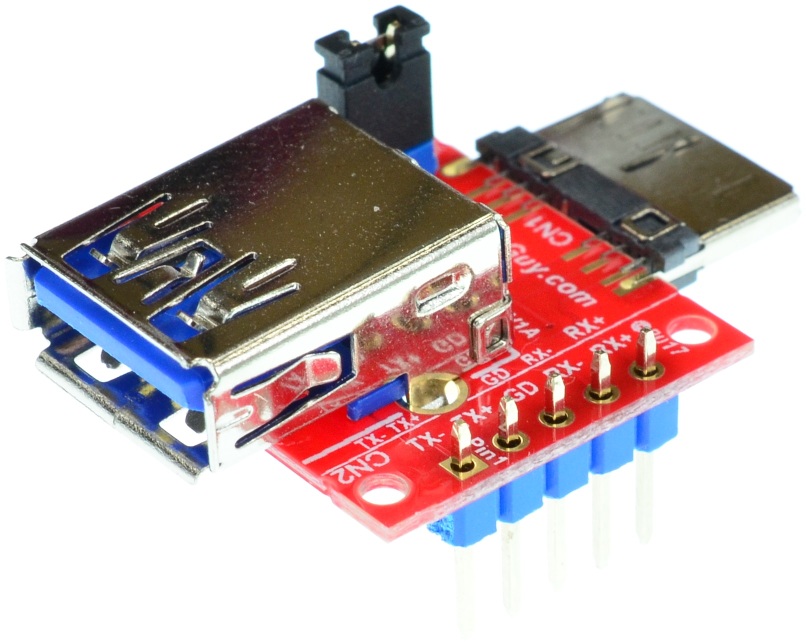
I’d like to charge my phone and use USB devices at the same time, but it seems like it requires a 64.9kOhm resistor from sensor ID pin (micro USB) to ground. Instead of melting a USB-OTG cable, I bought this adapter (schematics here)
so that I can have direct access to the ID pin. This is a USB 3.0 give that I have a Galaxy Note 3. The same principles apply to the USB 2.0 versions for Galaxy Note 4.
According to this website, fsa9480_i2c.h has the table for the resistor ID values. Turns out 64.9kOhm is the one for both charging (slowly) and using USB devices (like mouse, network adapter, etc.).